How to Fix IPTV Buffering: A Step-by-Step Troubleshooting Guide
Few things are more annoying than a picture that freezes during a match or the evening news. Fortunately, you can fix IPTV buffering in most homes with a few simple checks, and none of them need technical skills. This guide walks through each step in the order that solves problems fastest.
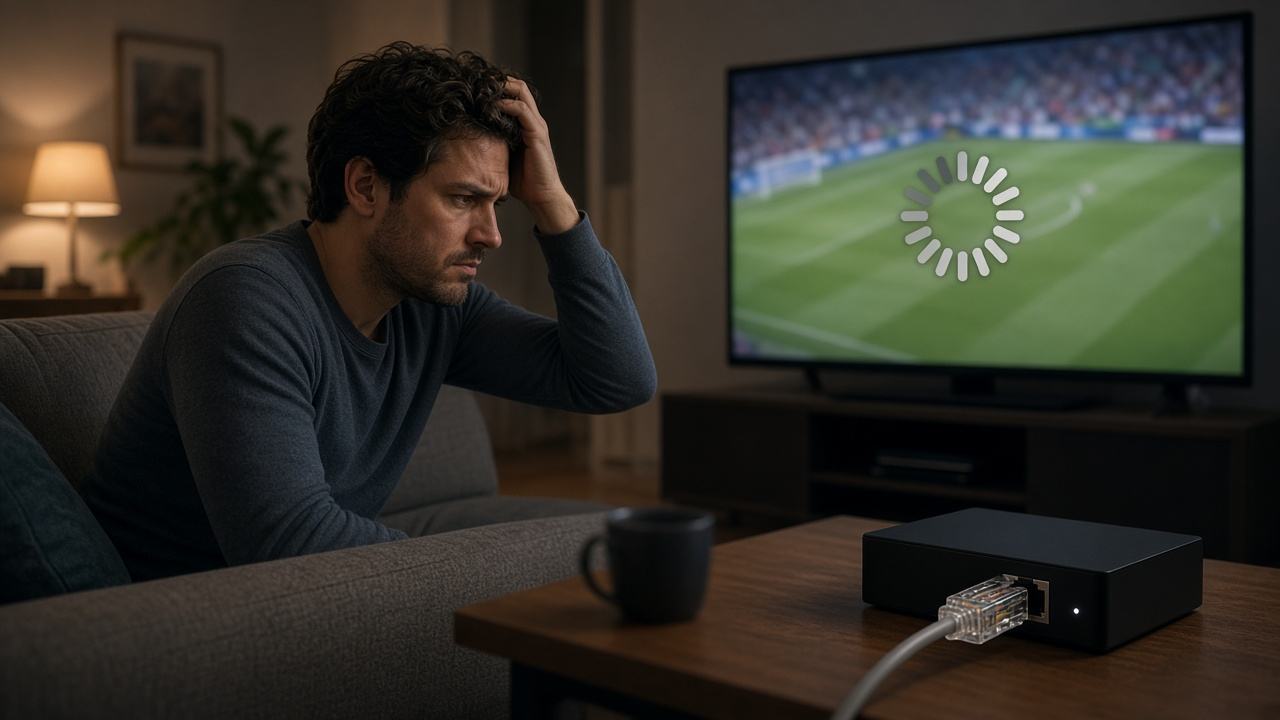
Work through the steps one at a time and test a channel after each change. That way, you learn what caused the problem and can avoid it next time.
Why IPTV buffers in the first place
Live TV arrives as a constant flow of data. When your device receives data more slowly than it plays it, the player pauses to refill its buffer. As a result, you see the spinning wheel.
The cause is usually one of four things: a weak home network, a busy connection, a slow device or a setting in the player app. Less often, a single channel has a temporary issue at the source. Understanding the cause makes it much easier to fix IPTV buffering for good, and the Wikipedia article on IPTV explains how TV over the internet works.
Steps to fix IPTV buffering at home
1. Restart the router and the device
First, unplug the router for 30 seconds, then plug it back in and wait until all lights are steady. Next, fully restart your Smart TV, Fire TV Stick or box rather than leaving it on standby. This clears memory and refreshes the network connection.
2. Switch to Ethernet, the quickest IPTV buffering fix
Wi-Fi is the most common cause of freezing. Therefore, connect the TV or box with a network cable if you can. For a Fire TV Stick, a USB Ethernet adapter is cheap and often makes a big difference. If a cable is not possible, use the 5 GHz Wi-Fi band and move the router into the open.
3. Check your speed
Run a speed test on the device you watch on, ideally in the evening. Around 10 Mbps per screen is enough for HD, while 4K needs about 25 Mbps or more. If your results are close to those figures, read our guide on how much bandwidth IPTV needs.
4. Change the DNS servers
DNS servers turn web addresses into the numeric addresses your device connects to. Sometimes your provider’s servers are slow or overloaded, so streams take longer to start. In the network settings of your device or router, set DNS manually to a well-known public service such as 1.1.1.1 or 8.8.8.8. Then restart the device and test again.
5. Raise the buffer size in the player app
Many player apps let you choose how much video to load in advance. Open the playback settings and look for an option called buffer size or network cache. Raising it from small to medium or large adds a few seconds before a channel starts. However, it smooths out short dips in your connection.
6. Lower the stream quality
If your line is borderline, pick an HD or SD version of a channel instead of FHD or 4K. A slightly softer picture that plays smoothly is far better than a sharp one that keeps stopping. In addition, many channels come in more than one quality, so the switch takes seconds.
7. Close background apps and clear the cache
Streaming sticks and older Smart TVs have limited memory. So, close apps you are not using and clear the player app’s cache from the device settings. Also, pause large downloads, cloud backups and game updates on other devices in the house.
Device-specific tips to fix IPTV buffering
- Fire TV Stick and Android TV: keep at least 1 GB of free storage, and turn off automatic app updates during viewing hours.
- Samsung and LG Smart TVs: update the TV firmware, then reinstall the player app if problems continue.
- Apple TV and iPhone: close the app fully from the app switcher before reopening it.
- MAG boxes: reboot from the settings menu and check that the portal address is correct.
- PC: use a wired connection and close browser tabs that play video.
For full device instructions, the setup guide covers each platform.
IPTV buffering on one channel or everything? How to fix it
This simple test saves a lot of time. If only one channel buffers while others play smoothly, the issue is probably with that channel’s source, and it often clears on its own. On the other hand, if every channel buffers, the cause is almost always your network or device.
Also check whether the problem appears at certain times. Buffering only in the evening often points to a busy connection in your area. In that case, a lower quality setting during peak hours helps.
Still buffering? When to ask IPTV support for a fix
If you have tried the steps above and still cannot fix IPTV buffering, it is time to message us. Support is available every day on WhatsApp. To get a quick answer, include:
- The device and player app you use
- Whether you use Wi-Fi or Ethernet
- Your latest speed test result
- Which channels buffer and at what time
Also make sure you are not going over the number of devices on your plan. Two screens playing on a one-device login will cause interruptions. Our team can check your account and suggest the right fix through the contact page.
If buffering only happens on one TV, our Smart TV guide covers player settings for Samsung, LG and Android TV. Watching from another country? The guide for Greeks abroad has tips for long-distance connections.
Enjoy smooth streaming with SetIPTV
Once your setup is solid, you can enjoy 57,000+ live channels and 235,000+ movies and series without interruptions. Want to test your connection first? Ask for a free trial on WhatsApp and check how it performs in the evening.
When you are ready, choose a plan on the pricing page. If you watch on more than one TV, the 12-month plan gives 25% off a second device and 50% off a third. Our M3U playlist guide also helps you load your login correctly from the start.