Internet Speed for IPTV: How Many Mbps You Really Need
Before you pick a plan, it helps to know the internet speed for IPTV that your home actually needs. The good news is that most broadband connections in Greece, Cyprus and abroad are fast enough. However, the number of screens, the picture quality and the way your TV connects to the router all change the answer.
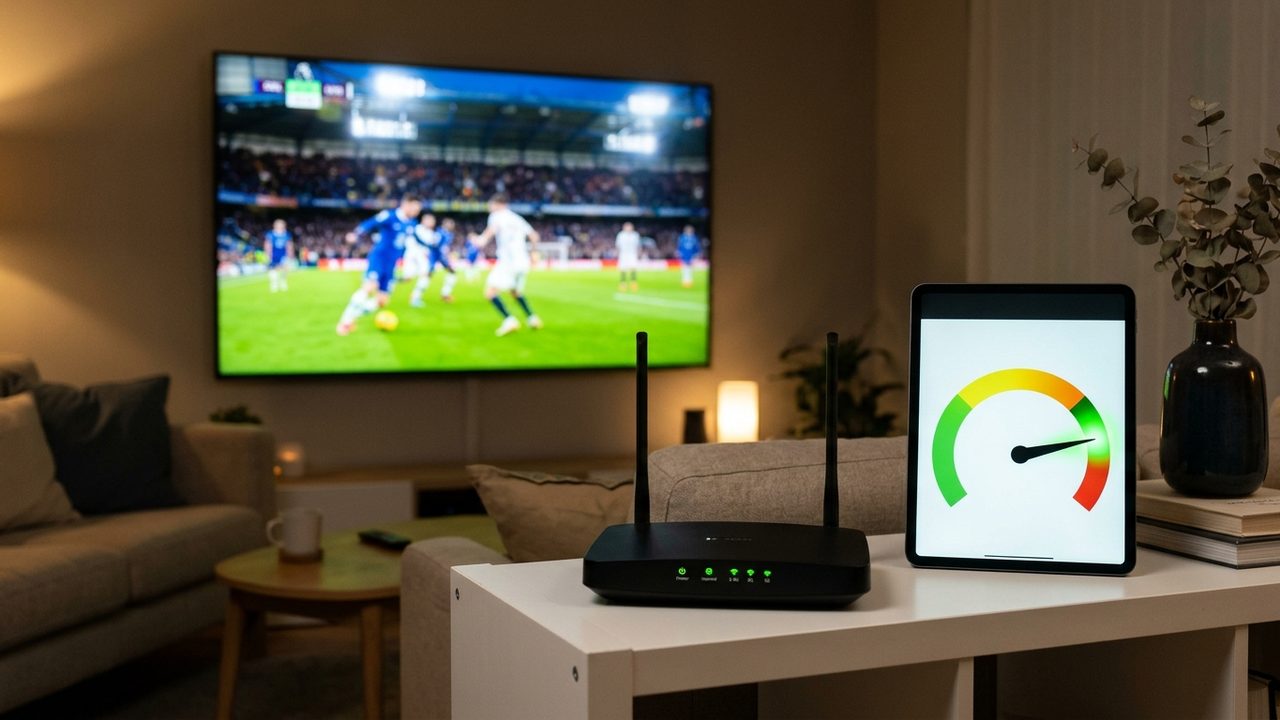
This guide gives clear Mbps figures for each quality level and explains how to plan for several devices. It also shows how to test your line in two minutes and how much data an hour of live TV uses, which matters on capped or mobile connections.
Internet speed for IPTV by picture quality
Streaming quality is the biggest factor. A sharper picture carries more data every second, so it needs more headroom. As a rough guide, plan for these download speeds per screen:
| Quality | Resolution | Recommended speed per screen |
|---|---|---|
| SD | 576p | About 4 Mbps |
| HD | 720p | About 10 Mbps |
| FHD | 1080p | About 15 Mbps |
| 4K | 2160p | 25 Mbps or more |
These figures include a safety margin. The stream itself uses less than the number shown, but live TV cannot pause to catch up the way a downloaded film can. As a result, spare capacity is what keeps the picture smooth when your line dips for a moment.
SetIPTV offers SD, HD and FHD streams, plus 4K where available. In short, around 10 Mbps covers HD comfortably, while 4K needs about 25 Mbps or more. If you are curious why resolution and data rate are linked, the Wikipedia article on bit rate explains the idea.
IPTV internet speed for several devices at once
Each active stream needs its own share of bandwidth. Therefore, add up the screens that may play at the same time, not the total number of devices in the house.
- One HD screen: 10 Mbps is enough.
- Two HD screens: aim for 20 to 25 Mbps.
- One 4K screen plus one HD screen: aim for 35 to 40 Mbps.
- Three screens in a busy family home: 50 Mbps or more leaves room for phones, video calls and game updates too.
Remember that other traffic shares the same line. For example, a cloud backup or a large console download can take most of your bandwidth without warning. If you watch on several TVs, the 12-month plan lets you add a second device at 25% off and a third at 50% off. You can compare the options on the pricing page.
Wi-Fi vs Ethernet for streaming
Your plan speed is only half the story. The other half is how the signal travels from the router to the TV. Ethernet is the preferred option, because a cable delivers nearly the full speed with steady timing.
Wi-Fi, on the other hand, loses speed through walls and floors and shares the air with nearby networks. If a cable is not practical, try these steps:
- Connect to the 5 GHz band rather than 2.4 GHz when the TV is in the same or the next room.
- Keep the router in an open spot, off the floor and away from metal cabinets.
- Use a mesh system or a powerline adapter for rooms far from the router.
- Restart the router now and then, so it clears old connections.
Many Fire TV Stick and Android TV owners notice a big jump after adding a cheap USB Ethernet adapter. Similarly, Smart TVs from Samsung and LG usually have a network port on the back that is easy to forget.
How to run a speed test the right way
A quick test tells you whether your connection meets the internet speed for IPTV that you need. However, a test on your phone next to the router can look much better than what the TV really gets. So, follow these steps:
- Run the test on the device you watch on, or on a device in the same spot.
- Pause other downloads and streams in the house first.
- Use the browser on your Smart TV or streaming stick, or a speed test app from its app store.
- Note the download speed, the ping and the jitter if shown.
- Repeat the test in the evening, because peak hours are when lines slow down the most.
Look for a download result well above the table figure for your chosen quality. In addition, a ping under about 50 ms and low jitter point to a stable line. If the evening result drops sharply, the issue may lie with your provider rather than your home network.
How much data IPTV uses per hour
Data use matters if you have a monthly cap, a mobile hotspot or a holiday-home connection. Usage depends on the channel and the stream quality, so treat these as estimates:
- SD: about 1 to 1.5 GB per hour
- HD: about 2 to 3 GB per hour
- FHD: about 3 to 4 GB per hour
- 4K: about 7 to 10 GB per hour
For example, two hours of HD news plus a film every evening adds up to roughly 150 to 250 GB a month. If you have a cap, choose SD or HD versions of channels on smaller screens. As a result, you keep the full experience on the main TV without running out of data.
What to do if your speed is borderline
A connection close to the minimum can still work well with a few changes. First, wire the main TV with Ethernet. Next, pick HD instead of 4K for busy evenings. Then, close apps that run in the background on the streaming device.
If the picture still pauses, our guide to solving IPTV buffering walks you through router, DNS and player settings step by step. For device-specific settings, the setup guide covers Smart TV, Fire TV Stick, Apple TV, MAG and PC. Owners of Samsung, LG and Android TV sets can also read our page on Greek IPTV on Smart TV.
Once your connection checks out, our Greek IPTV subscription overview explains what each plan includes, and you can test the picture at home with a free trial.
Check your internet speed for IPTV with a free trial
The most reliable test is real viewing on your own line. That is why you can ask for a free trial on WhatsApp before you pay. Watch a few Greek news channels and a film in the evening, and see how your connection copes.
Once you are happy, choose a plan on the pricing page, from $12.99 for one month to $74.99 for twelve months. Activation usually takes minutes. To request your trial or ask about speeds, contact our team on WhatsApp.